
If I enter an incorrect answer then press See Answer, Bunpro shows me the correct kanji in green text in the sentence. I often (usually?) want to know the kana to get that kanji but the only way I know is to drill down into the info with the Show info button. Bunpro would be SO much more useful if it could show me the correct kana in green as well as the correct Kanji. Or is there another quick way to get what I need? Opening out to the experts please!
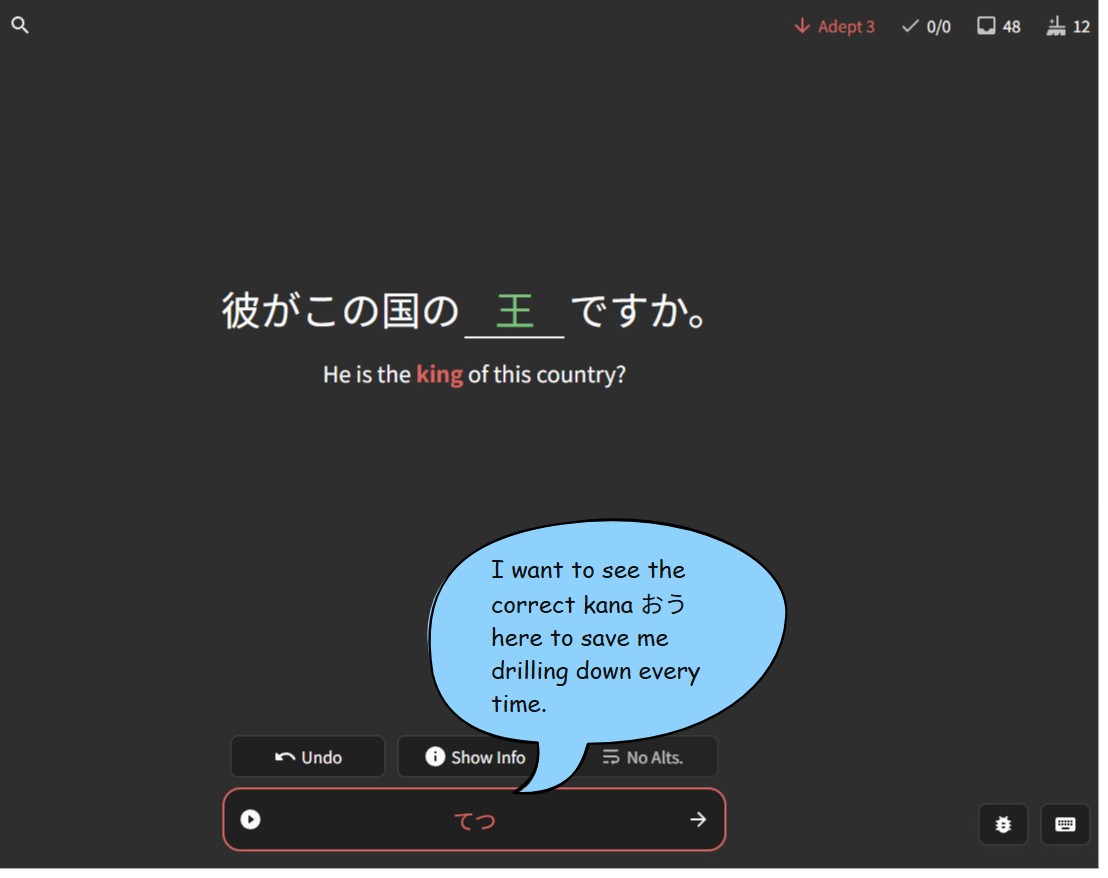
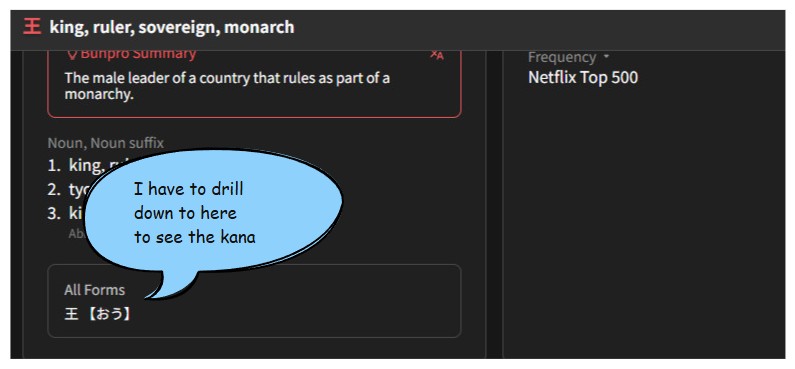
You can hover your mouse over any kanji for its readings, if you’re using Bunpro apps on mobile, then click on the kanji by hand.
5 Likes
It’s as Minh_Nguyen says. Just to be sure, it only works if “Furigana On Hover” is turned on in your general settings.
1 Like
That’s just great, thank you! It USUALLY words though the furigana is extremely small especially on the iPhone app though I can zoom in by ‘unpinching’ two fingers. Do you happen to know if there any other setting to increase the furigana font size?
Thank you. Good tip, though when I checked I found that I had “Furigana On Hover” already turned on. The solution was as per Minh_Nguyen kindly advised
1 Like
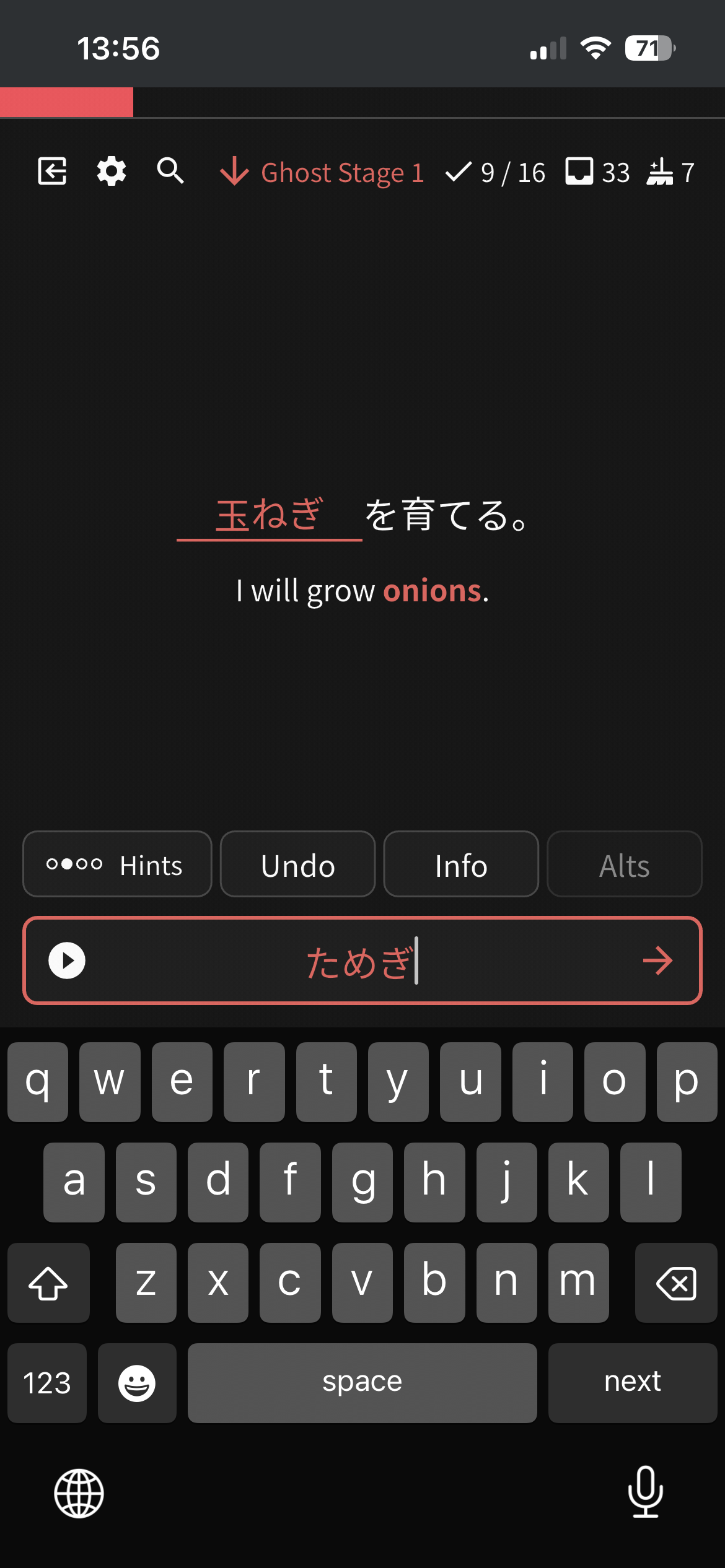
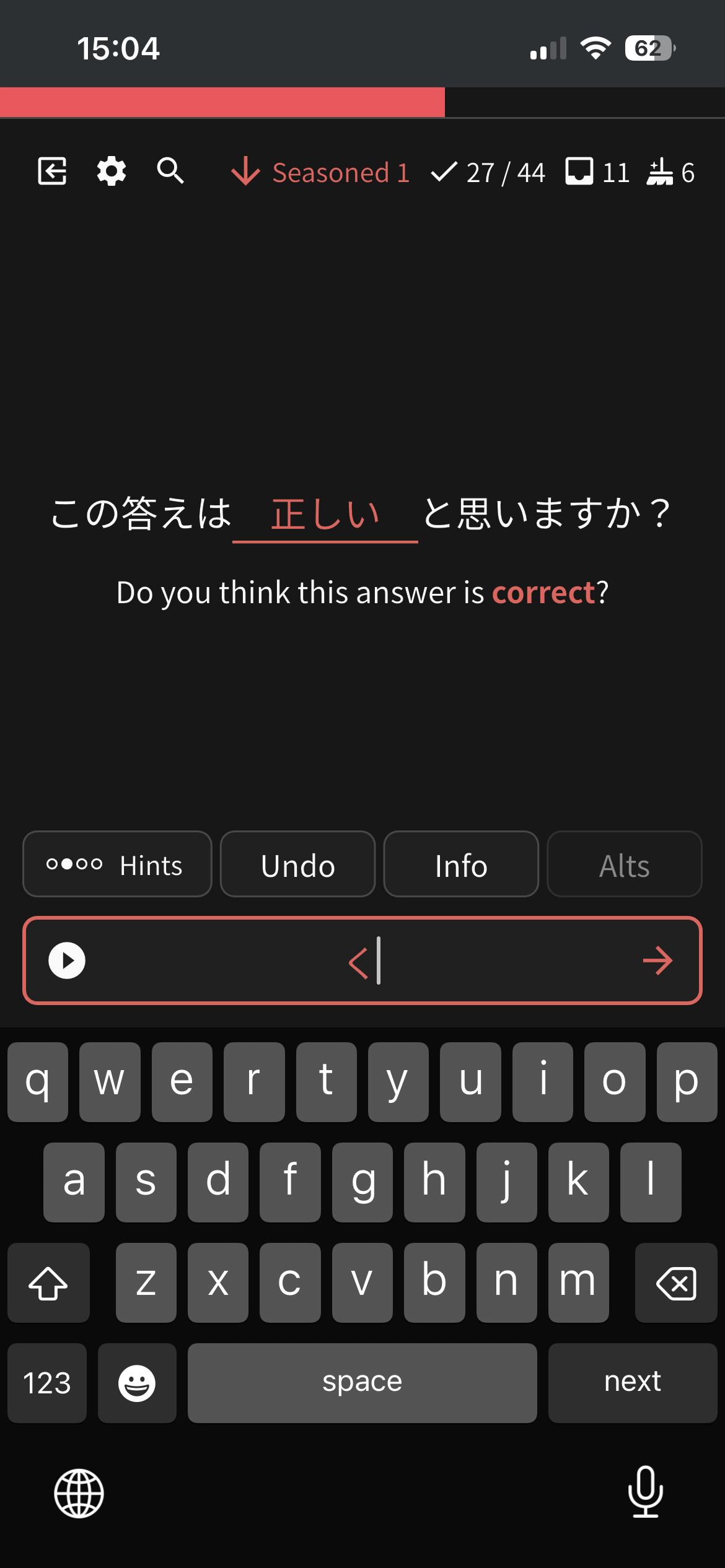
Adding two examples where there’s no furigana even though I’m hovering and pressing as I’ve done successfully with 99% of the others. Is it possible that whoever set these up in Bunpro hasn’t yet added any furigana?
1 Like
Looks like an issue with the mobile app, since the item has furigana and works fine for me on Desktop (just tested.) I’ll forward this to the mobile dev, but just to double check - are you using the most up to date version of the app?
1 Like
Yes, I believe it’s the current version.
0.5.2+343
thanks!
2 Likes
Hey looking into it!
thanks to the Bunpro folks for helping me with this but the good news is that I did a bunch more reviews and both phrases cycled round. After multiple attempts to get the furigana to appear, I realised that both phrases have the kanji at the start of the word followed by kana but I was making a rookie mistake of pressing the middle of the word rather than the kanji character at the start. Once I’d realized this, I was able to consistently see the furigana on pressing the kanji so please put this one down to user error.
Is there a way to make the furigana bigger? It’s a bit of a struggle to see it on an iPhone apart from using pinch-to-zoom.
1 Like
Thanks to Dominic - mrnoone - for letting me know how to make the furigana bigger on the iPhone app. The first option below, gave me what I needed.
- There are three options:
- open settings and search for large furigana mode (increases just the size of the furigana)
- in the app settings you can just change the font size of everything, it is possible to set it quite large
- almost everywhere in the app with actual content (reviews, grammar, vocacb) you can use the pinch to zoom gesture which will just zoom everything
1 Like
Hi, I know I m late but I have a tip for a pc if you do not want to see every furigana nor take hands of keyboad to hover. After the answer press F it scrolls the perfect ammount
thanks, good suggestion! F for Flip but I don’t know of a shortcut to get back to the question from there.