
I enjoy doing Bunpro reviews with shadowing. While Bunpro already provides a lot of high-quality audio, there are still review items without audio (especially A-category vocabulary entries, which currently have no associated audio), and there is currently no way to attach audio to Self-Study Sentences.
Because of that, I built a tool that allows you to use your own audio files during Bunpro reviews.
I built this project with extensive help from ChatGPT.
I am not a professional software developer, but I was able to design, test, and iterate on this tool with AI assistance to support my own Bunpro workflow.
As with any community project, please use it at your own discretion.
This is an unofficial community project and is not affiliated with Bunpro.
What Does It Do?
After answering a review correctly, a Local Audio Override panel will appear.
You can attach your own audio file to that sentence and use it instead of the default Bunpro audio.
Once configured:
- Press P to play your custom audio.
- Click the Bunpro audio button to play your custom audio.
- The built-in Bunpro audio player (play/pause, progress bar, seeking, speed controls, etc.) continues to work normally.
- Works with Reviews, Cram Sessions, and Self-Study Sentences.
Example Use Cases
- VoiceVox generated audio
- Personal shadowing recordings
- Audio clips from anime, dramas, games, and other media
- Adding audio to Self-Study Sentences
New Features (v0.5.0)
Version 0.5.0 introduces a built-in administration mode.
Admin Mode
The Admin button opens a management interface that allows you to:
- Export your entire audio library to a backup file
- Import an audio library from another browser or computer
- Import and replace existing entries
- View database statistics
- Clean the entire database (with confirmation protection)
This makes it much easier to back up your audio collection and migrate it between devices.
Installation
- Install Tampermonkey.
- Install BunPro Local Audio Override from GreasyFork: BunPro Local Audio Override
- Refresh Bunpro.
Usage
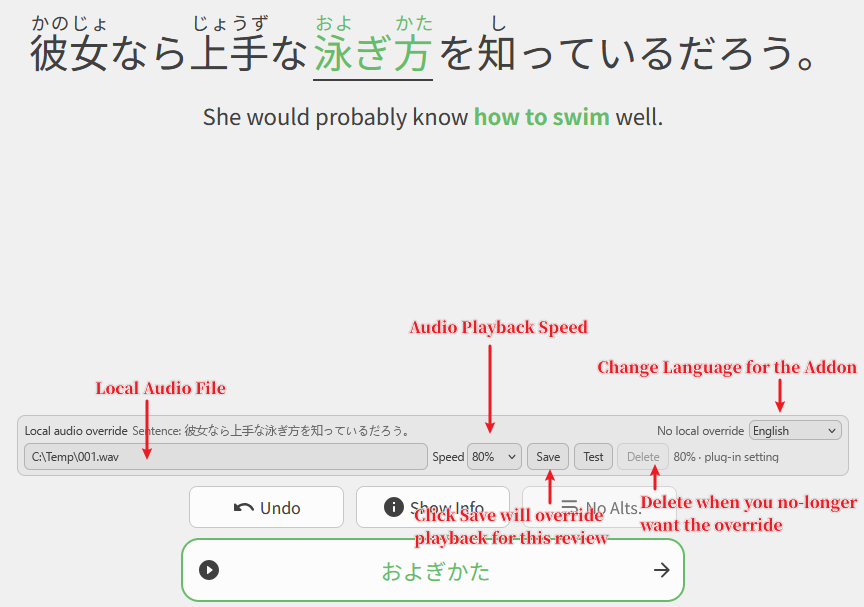
After answering a review correctly, the Local Audio Override panel will appear.
Select an audio file and save it.
The audio is stored locally in your browser and never leaves your computer.
Notes
- Audio is stored per browser profile.
- Clearing browser data may remove stored audio if you do not create a backup.
- The Admin Mode Export feature can be used to back up your audio library before migrating to another browser or computer.
- Audio files must be selected manually.
Feedback
Bug reports, suggestions, and feature requests are always welcome.
The full source code is available through GreasyFork and can be inspected or modified freely.