Problems with entering answers that have a long vowel

I’m using a “Japanese Cities” community deck. For some of the city names, it seems impossible to enter the correct answer on an English keyboard.

https://imgur.com/a/xQL5eGl

Here, the correct answer is displayed as “Kofu” with a little line above the ‘o’. I tried entering “kofu” but my answer was rejected. I also tried “koufu” and it is still rejected. I tried “koofu” too and it’s rejected. I tried entering using hiragana but I get a tooltip telling me that I have to use english input for this deck.

Is there a way to enter the correct answer using a normal english phone keyboard? If not, is there a way to completely skip/ignore a card in a deck?

4 Likes

Not all the words are programmed well. It wants the answer in English. It would be better to set it to reveal and grade.

5 Likes

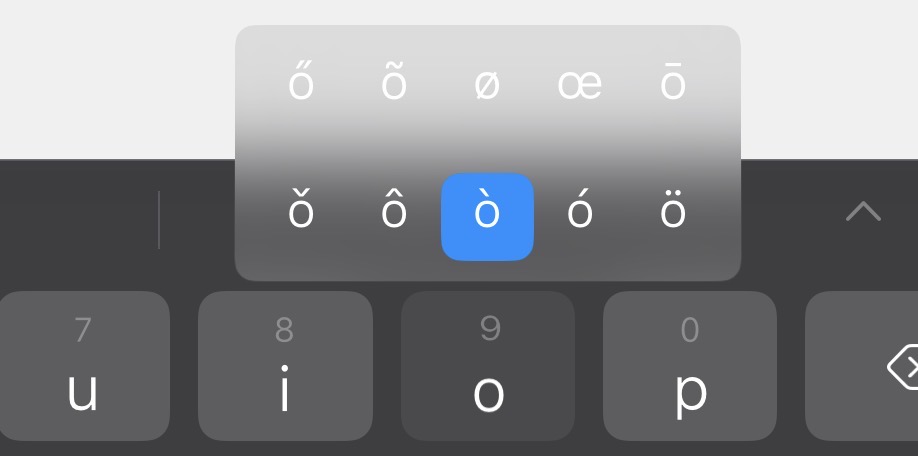
This is phone dependent, but have you tried long-pressing O? That brings up a sub menu with other letter options

2 Likes

You can try and write a custom synonym/answer without the special “o”, perhaps?

1 Like

Hi there and welcome to the forums! :confetti_ball:

As @lunchbox1 mentioned, it’s an issue with the content.

I’ve manually added kofu as an acceptable answer to that Vocab.

For future words, if you hit the cog :gear: at the top left during Reviews, there is a “Report :bug:” button that you can use to report this to our Content team, which can fix the issue for you directly through the Vocab (no need for synonyms).

2 Likes

I’d also just like to say thanks for studying my deck :smiley:
I probably should have looked through and reported this before, when making the deck :sweat_smile:

3 Likes

Hey! I’m liking the deck so far. I wanted to pick up on some Japan general knowledge and it’s nice being able to recognise the names of places when I’m travelling in Japan!

3 Likes

Thanks for fixing it. In future I’ll know to use the report buttons. Cheers!

3 Likes

Just so you know, I’ve gone through the deck and reported all the ones I could find with a macron :slight_smile:

2 Likes

Depends on your operating system (android or iOS). Usually though, just hold down the “o” key on the onscreen keyboard and it should give options like this:

This also works for any letters that may have alternative options. In this case you would select the top right for the “ō” character.

2 Likes